PayPal Express Checkout (foxnetsoft.com)

PayPal Express Checkout
PayPal, Venmo and Pay Later express buttons on the shopping cart page and a PayPal button on the product page (FOXNETSOFT.COM)
 Buy now
 Documentation
 Another plugins
 Performance
Description
PayPal Express Checkout is a fast PayPal checkout for nopCommerce that starts on the shopping cart page. Its three express buttons – PayPal, Venmo and Pay Later – open the PayPal window in place, where the buyer picks the address and the shipping method. The order is placed as soon as the buyer approves the payment, without the nopCommerce checkout pages.
You need a PayPal account with a REST API app: the Client ID and the Client secret. You choose which buttons to show, whether the payment is authorized or captured at once, and whether the customer pays in the primary store currency or in their own.
The plugin checks the PayPal amount against the recalculated cart before it takes any money. If the total changed after the approval, it updates the PayPal order first. Webhook messages are accepted only with a valid PayPal signature, and a PayPal payment is bound to the customer who started it. If nopCommerce can’t create the order after PayPal has taken the money, the payment is refunded automatically. For PayPal at the payment step of the checkout, use our PayPal Smart Payment Button or PayPal Standard Pro plugins.
How it works
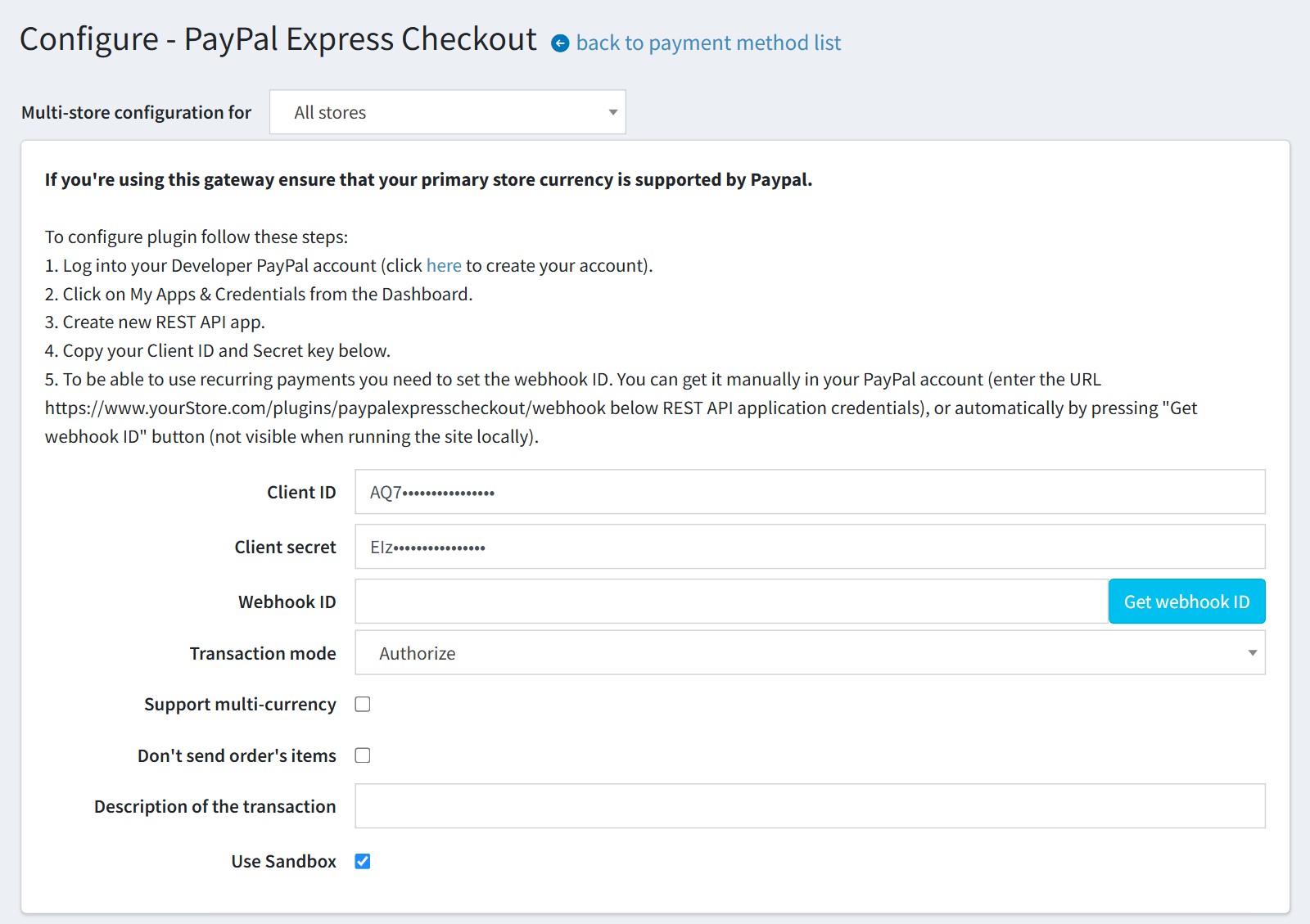
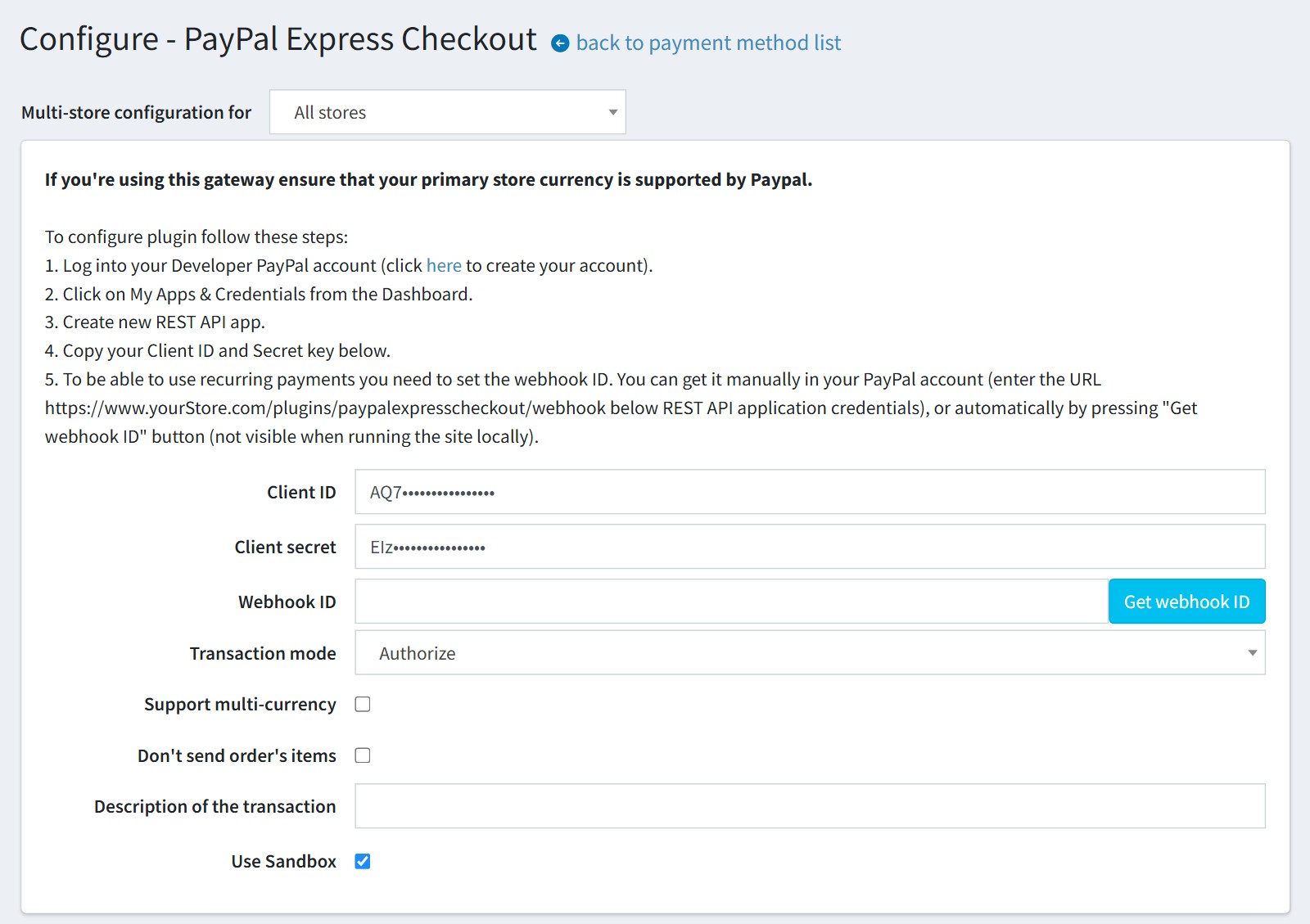
1Create a REST API app in your PayPal Developer account and copy the Client ID and the Client secret into the configure page. Press ‘Get webhook ID’ so that PayPal keeps the order status up to date. Choose Authorize, or Authorize and capture. Keep ‘Use Sandbox’ on while you test.
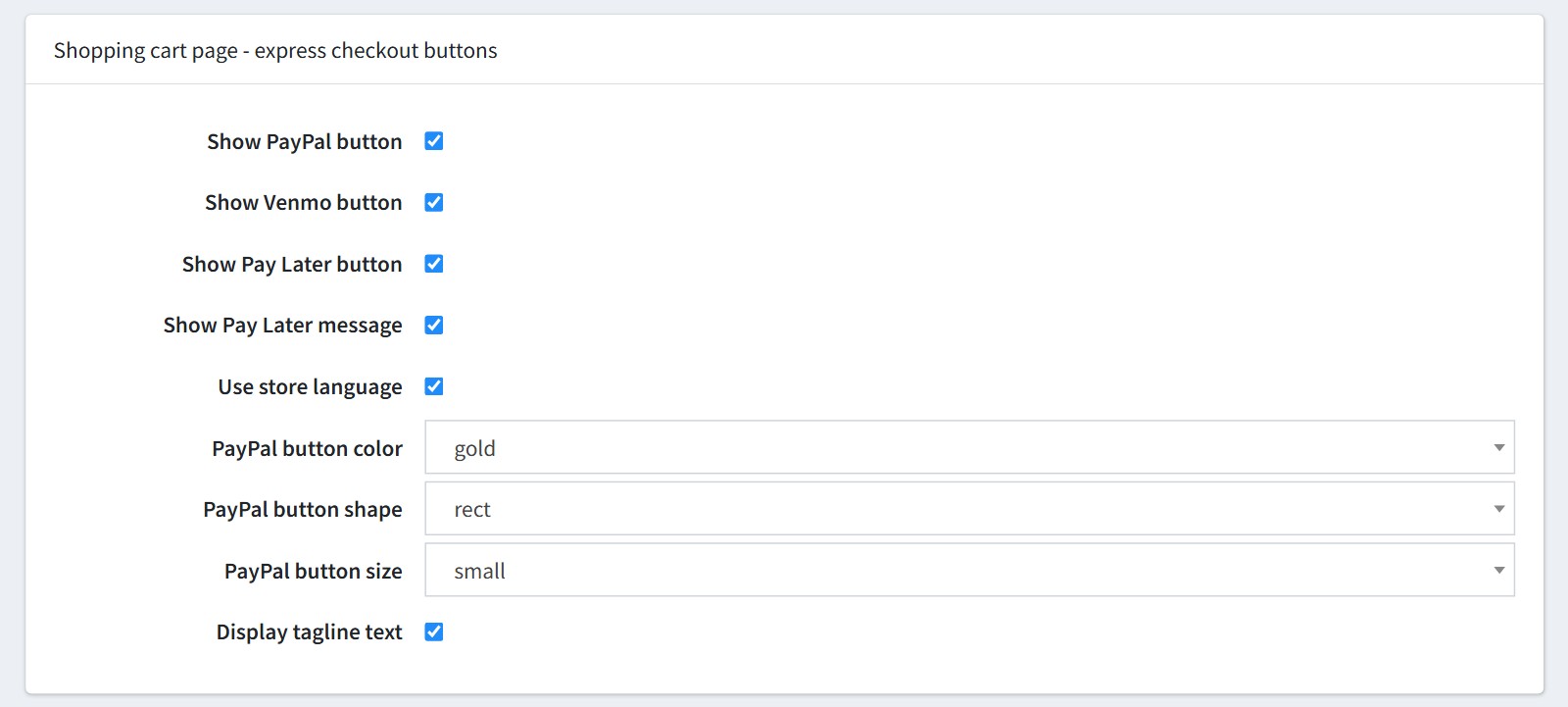
2Choose the buttons for the shopping cart page: PayPal, Venmo, Pay Later and the Pay Later message. The buttons can use the language of your store, and you set their color, shape and size. PayPal decides for each customer which of them are shown.
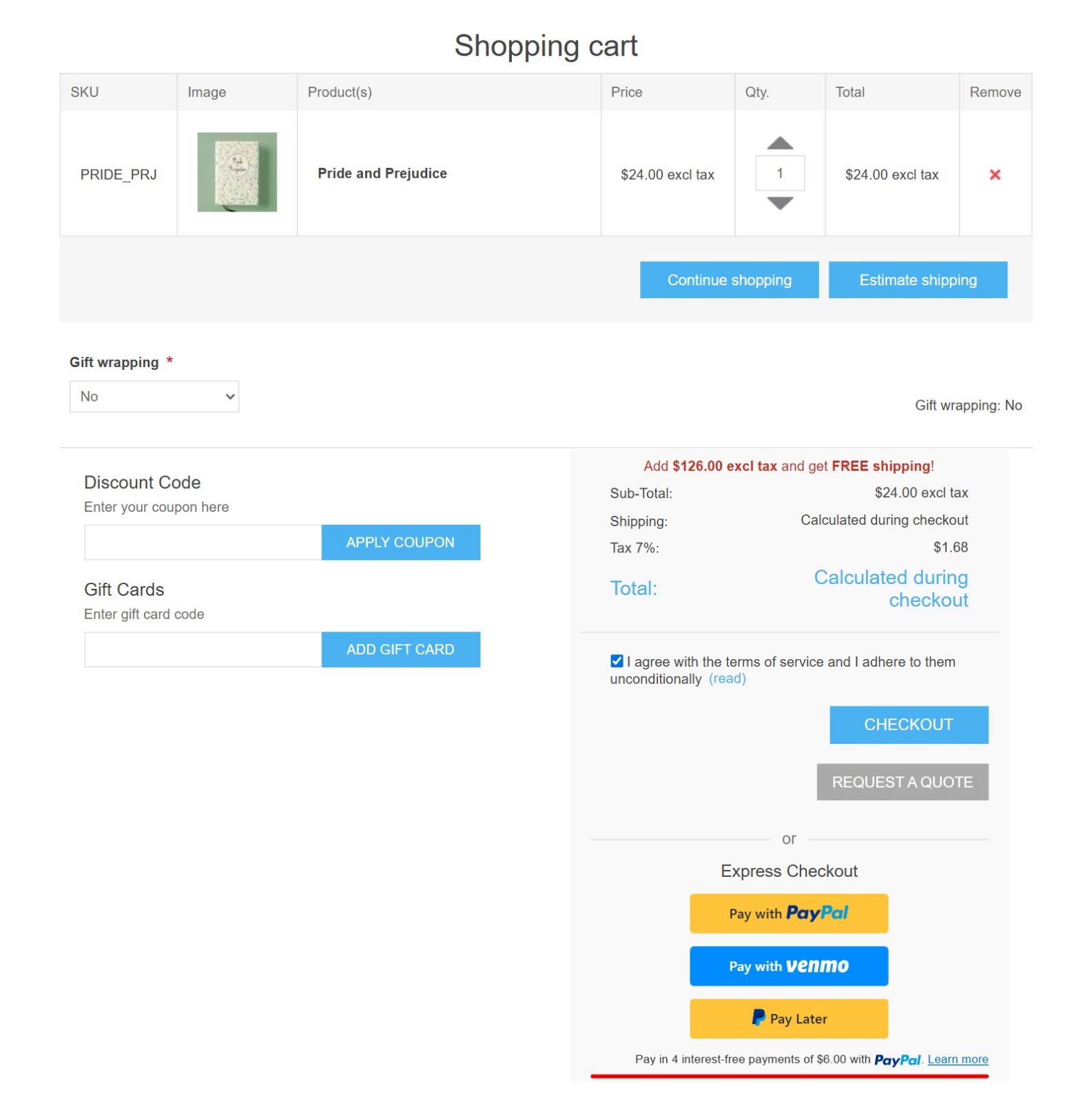
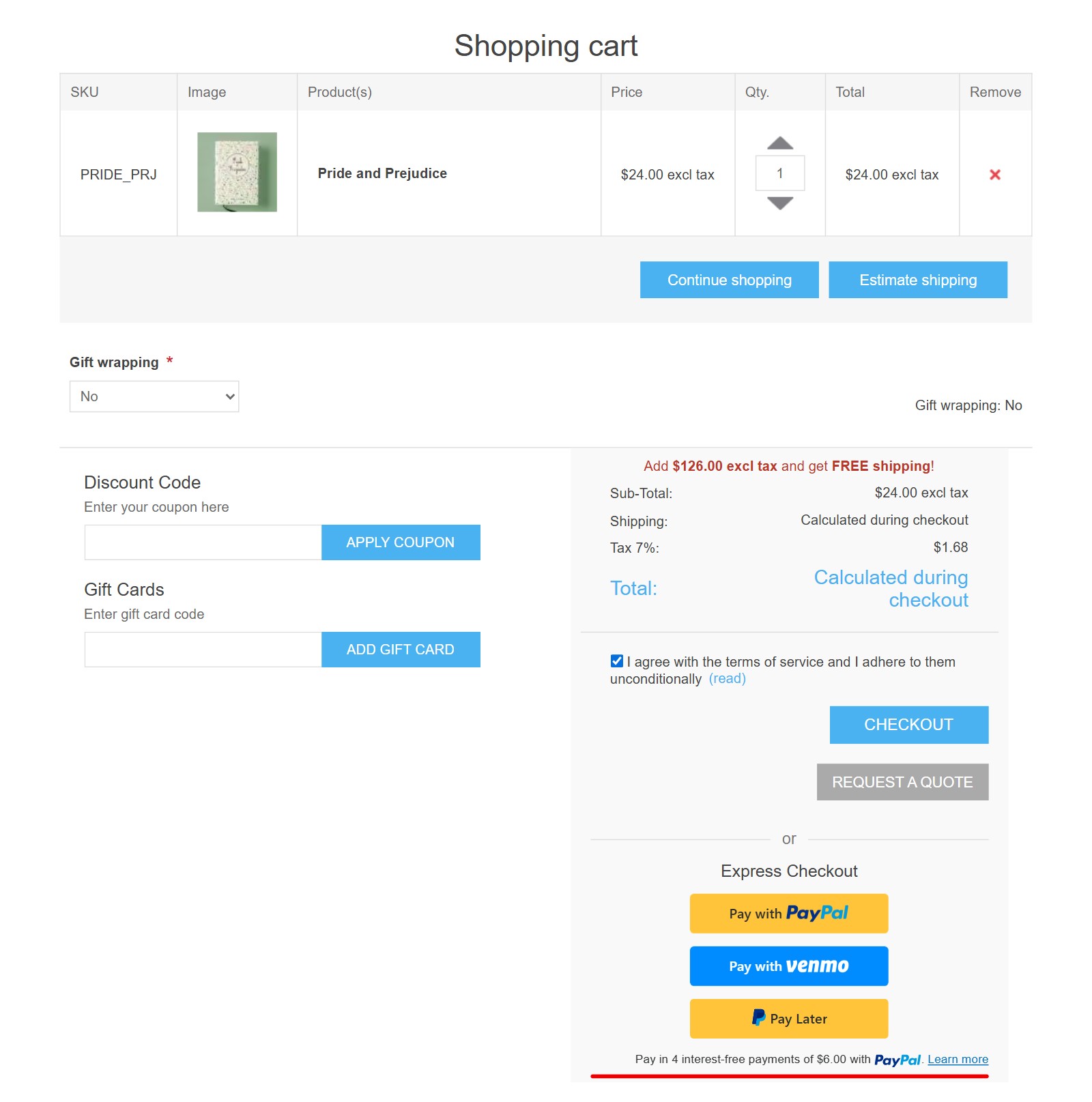
3This is the shopping cart page. The express buttons sit under the totals. If your store shows the terms of service here, they appear only after the customer ticks the checkbox.
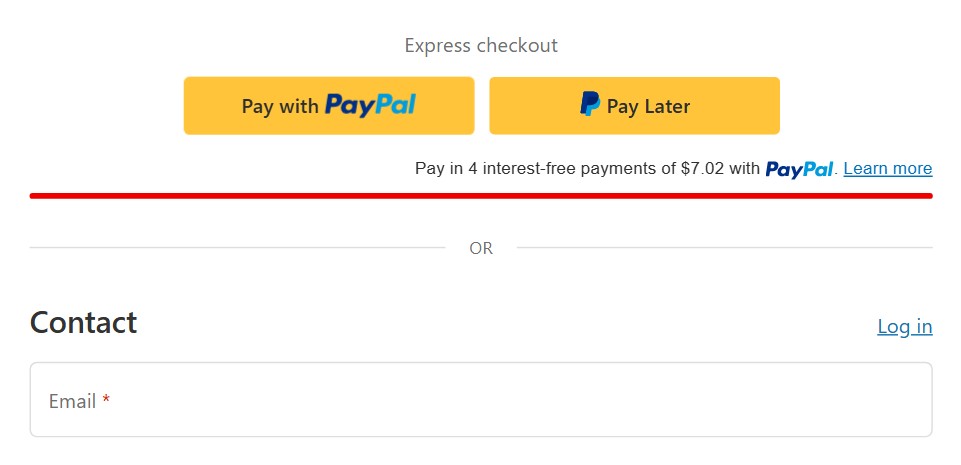
4With our Modern Checkout plugin the same buttons are also shown in the ‘Express checkout’ section at the top of the checkout page.
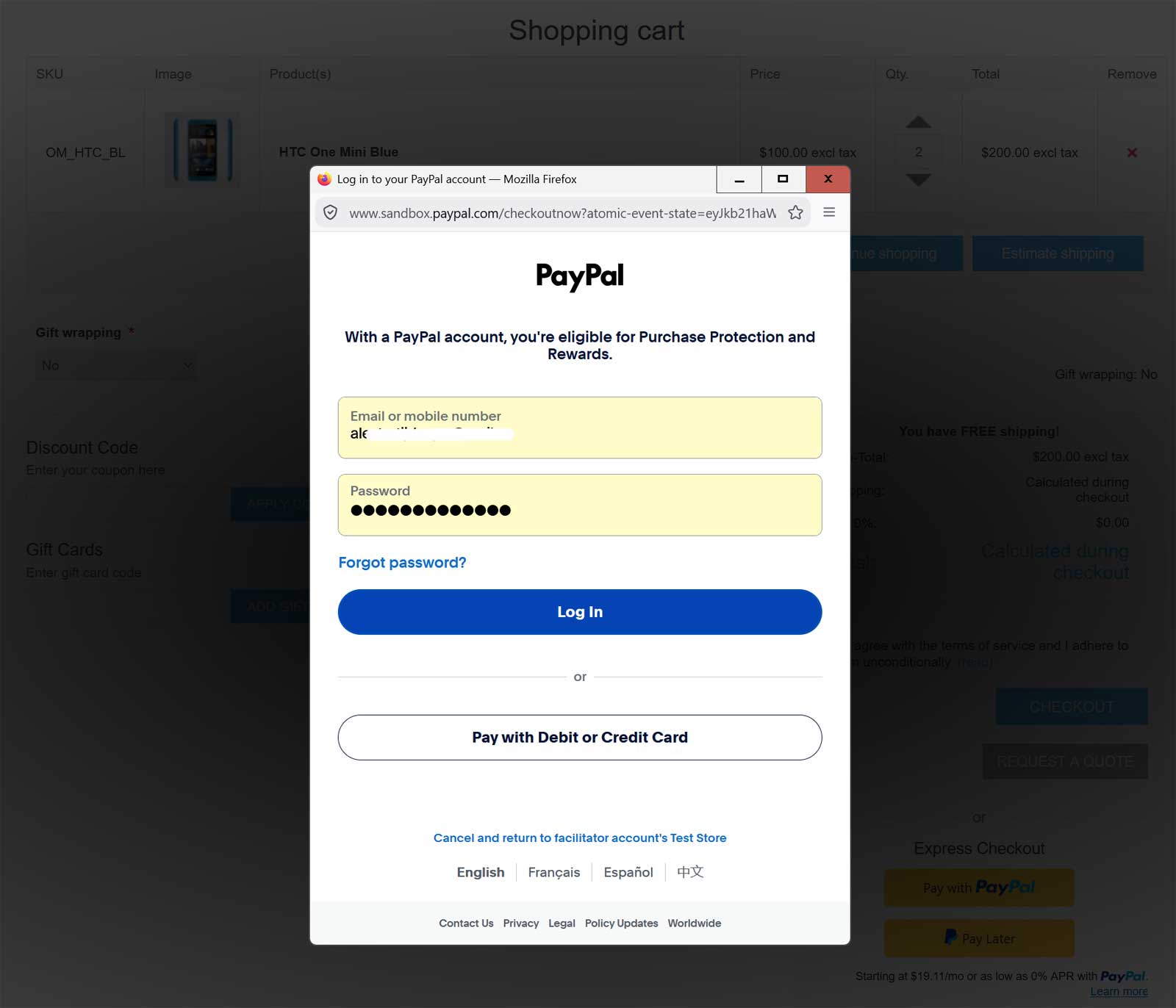
5The button opens the PayPal window over your store. The customer logs into PayPal, or pays with a debit or credit card.
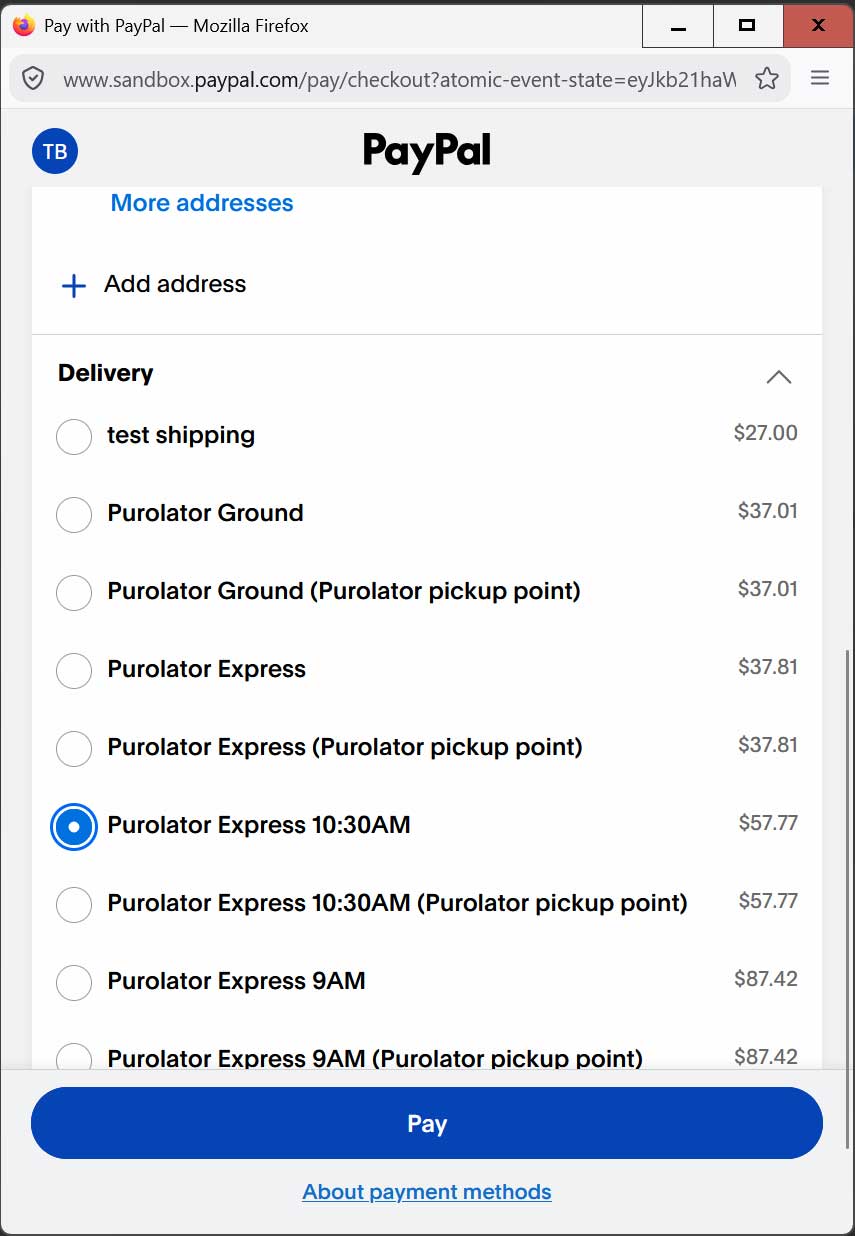
6The customer selects the shipping address and the delivery method in the PayPal window, and the total is recalculated. ‘Pay’ places the order at once and the customer sees the order completed page. The name, email, phone and addresses from PayPal are saved to the customer.
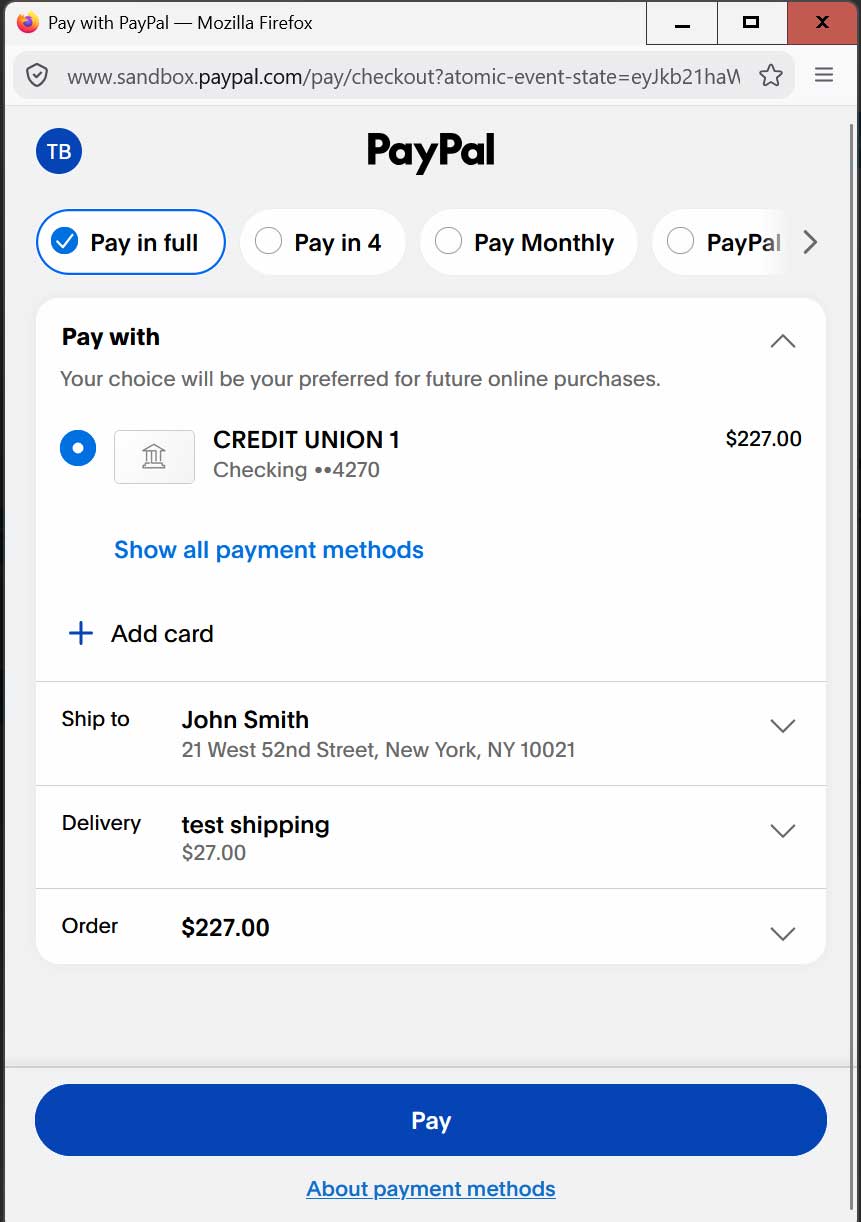
7The delivery methods in the PayPal window are the shipping methods of your store, with your rates. PayPal shows at most 10 of them.
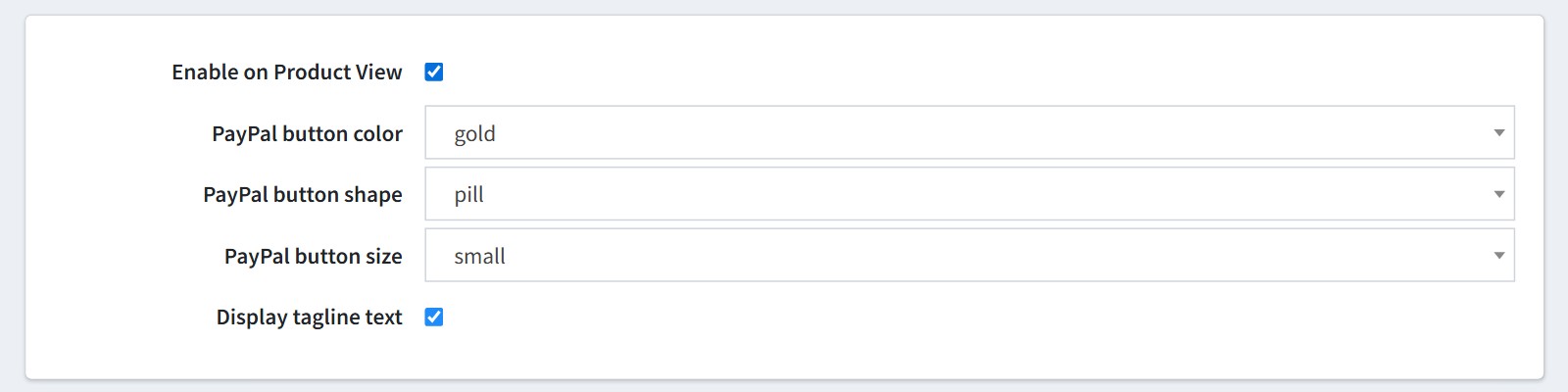
8‘Enable on Product View’ adds a PayPal button to the product page, with its own color, shape, size and tagline.
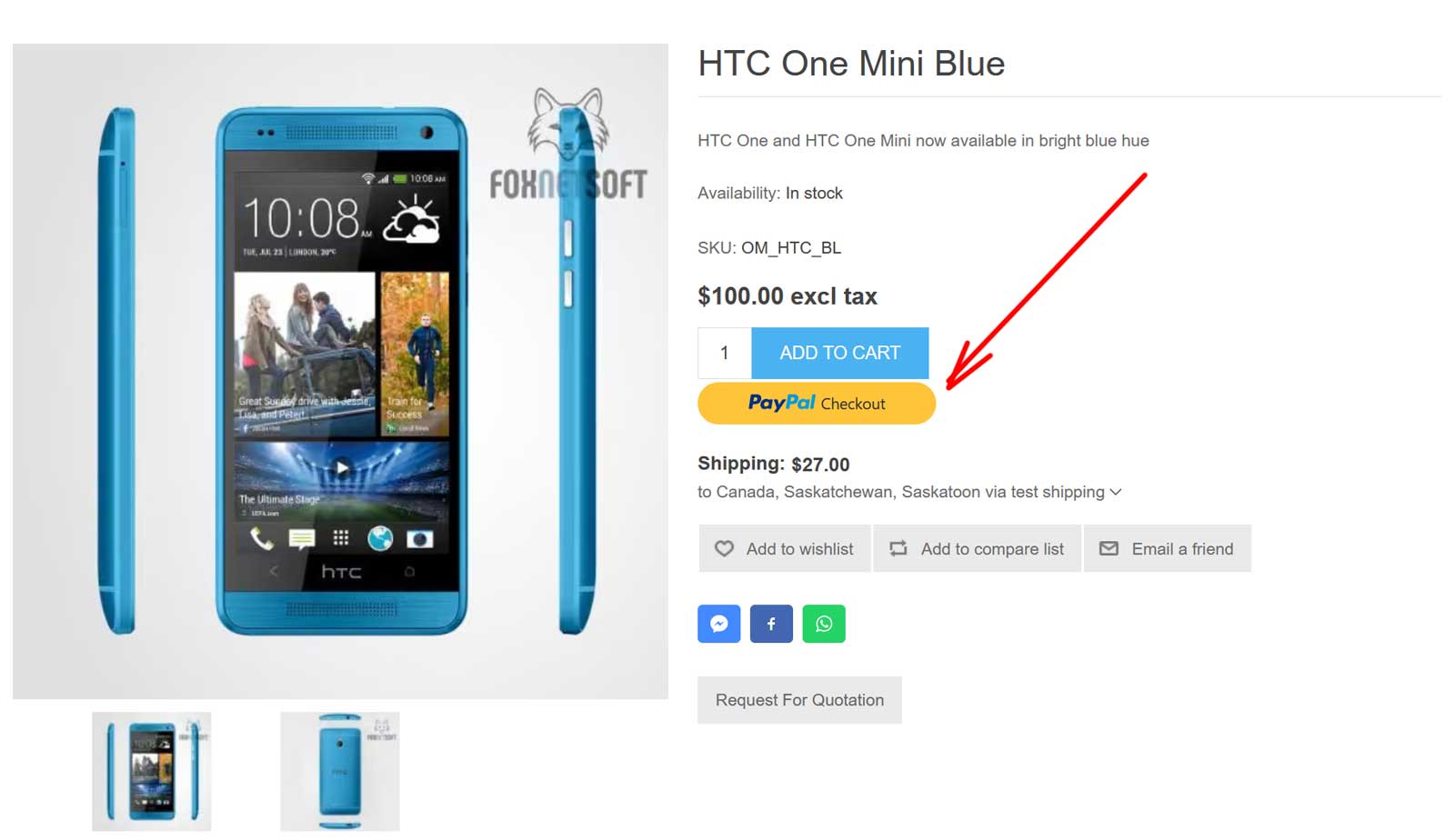
9The button adds the product with the selected attributes to the cart and opens the PayPal window. It is shown for simple products with a price.
10You could add an additional payment fee, as a fixed amount or as a percentage of the order total.

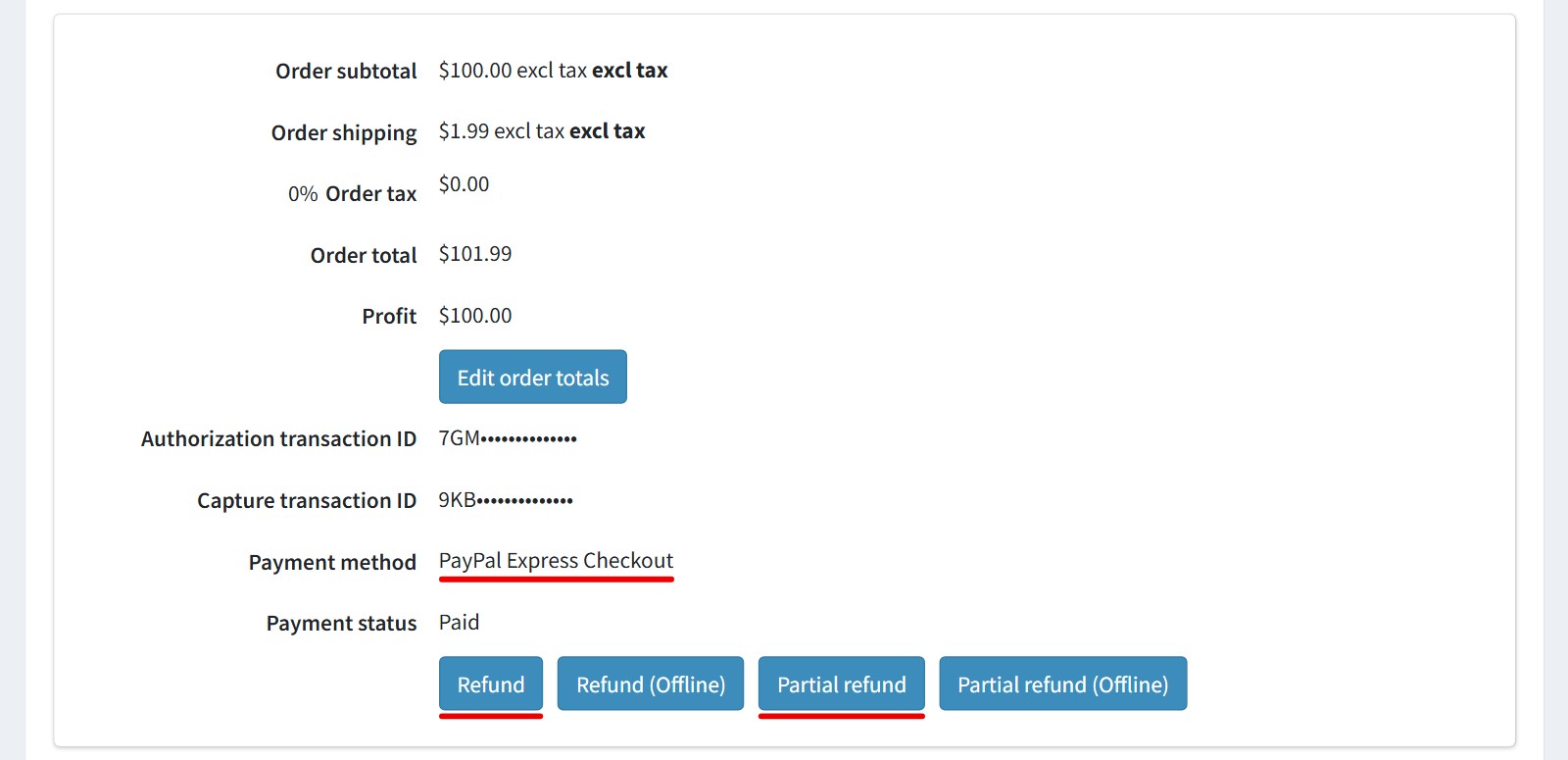
11An authorized payment is captured or voided from the admin order page. The ‘Capture’ and ‘Void’ buttons call PayPal.
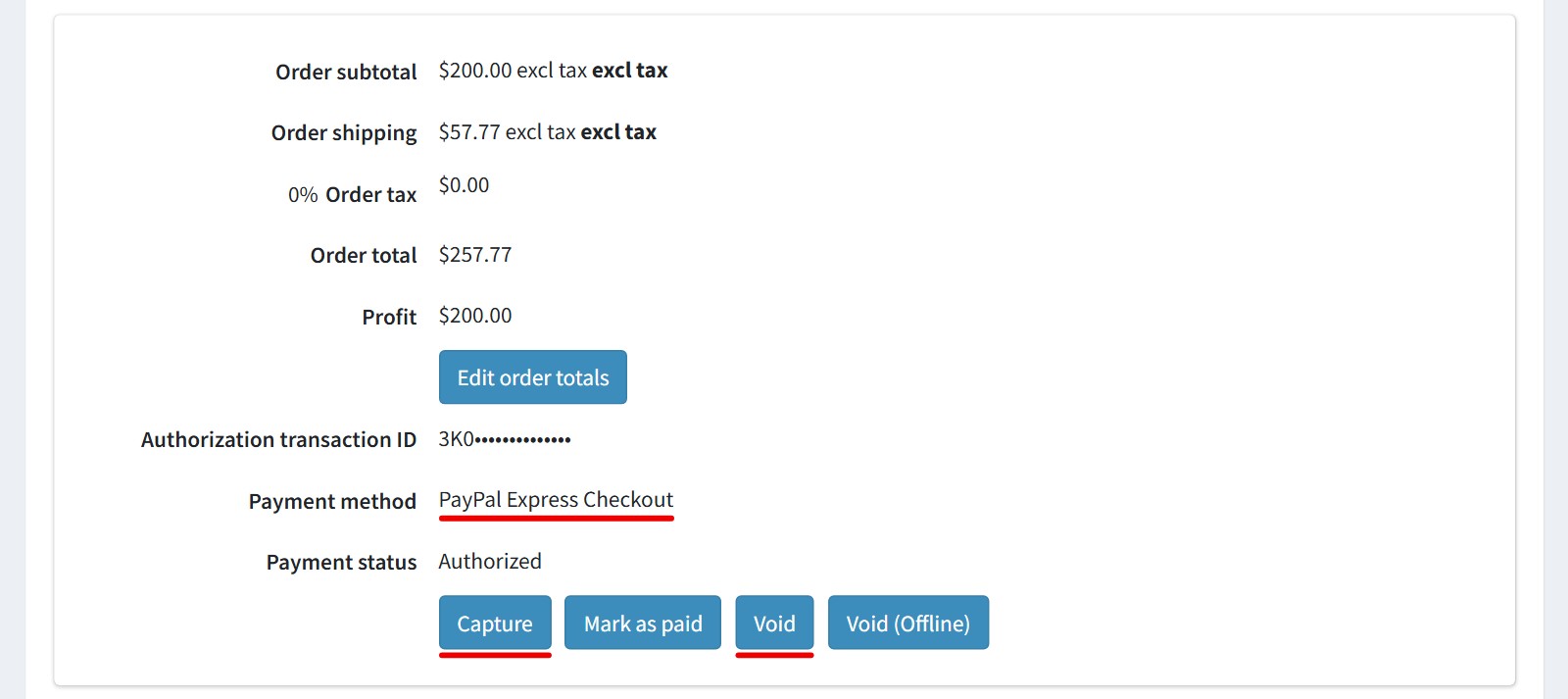
12After the capture you could refund the payment, in full or in part, from the same page.
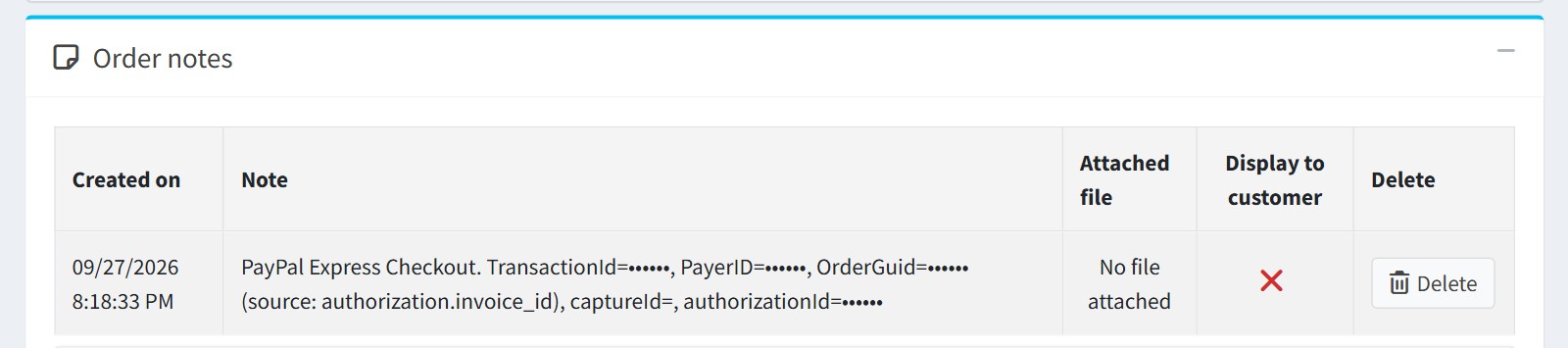
13The plugin adds the PayPal transaction, the payer and the order GUID to the order notes.
Features
- PayPal, Venmo and Pay Later express buttons on the shopping cart page
- Optional PayPal button on the product page
- Address and shipping method selected in the PayPal window
- The order is placed right after the customer approves the payment
- Up to 10 store shipping methods, re-rated when the address changes
- Authorize or capture, with capture, void and full or partial refund from the admin order page
- PayPal subscriptions for recurring products
- Webhook order sync with a PayPal signature check
- Automatic refund if the order can’t be created after the payment
- Button color, shape, size and tagline for the cart and the product page
- Store language for the buttons, and the customer’s currency if you enable it
- Sandbox mode, a fixed or percentage fee, and settings per store
Specification
 Supported nopCommerce 5.00, 4.90, 4.80, 4.70, 4.60, 4.50, 4.40
 Fully localizable using extermal XML files
 Multi-store support
 Free Trial (30 days trial period)
 1 year free support and upgrades since purchase date
 Performance optimization
 Easy setup and customization
 Fast support
About US

We did more than 190 plugins for nopcommerce. Check out portfolio.
All in all, such a great company to work with!!
Uses different technology to the Nop plugin, and once set up seems to work really well. Great support from the author as usual.
Lorenzo
Recommended.
Our unique situation needed a few tweaks, which the developer made very quickly. Good service.
The Support from foxnetsoft is outstanding with all their products! They respond immediately and are always there to help/support with any query or fix stuff quickly.
The author also takes care of all his products and updates them constantly with new features and fixes, and there is great documentation for all of them