PayPal Pix (Brazil)
PIX payments through PayPal's Commerce API: QR code checkout and webhook confirmation verified via PayPal's own signature API. Automated tests included; validate against your PayPal Business sandbox before production.
免费
支持的版本:
4.90
创建于
八月 20,2026
最后更新:
九月 28,2026
描述
PayPal Pix (Brazil) for nopCommerce 4.90
Accept PIX, Brazil's instant-payment system, through PayPal's Commerce Platform REST API. The customer is redirected to a QR-code page after checkout; PayPal confirms payment asynchronously via a webhook.
What this plugin does
- Real API calls — authenticates with PayPal's OAuth2 client-credentials flow and creates a PIX order via the v2 Checkout Orders API (sandbox and production both supported).
- QR code + copy-paste checkout — displays the PIX QR code image and the copy-paste ("Pix Copia e Cola") code returned by PayPal.
- Authentic webhook verification — every webhook delivery is checked against PayPal's own
verify-webhook-signatureAPI using the Webhook ID configured in the admin; the callback fails closed (never marks an order paid) if the Webhook ID is unconfigured, required signature headers are missing, or PayPal does not confirm the signature. - Replay protection — duplicate/resent webhook deliveries are detected by PayPal's event id and are not reprocessed.
- Actionable failure handling — missing credentials, gateway errors, timeouts, and malformed responses are surfaced as a clear checkout message instead of a server error.
Before enabling in production
- Validate a full order end-to-end with your own PayPal Business sandbox credentials before accepting real payments.
- Card capture/refund/void are not part of this redirect-based PIX flow.
Requirements
- nopCommerce 4.90 on .NET 9
- PayPal Business account enabled for Brazil with PIX activated
- PayPal REST API credentials (Client ID and Secret) and a registered Webhook ID from developer.paypal.com
Installation
- Upload the plugin via Admin > Configuration > Local Plugins > Upload
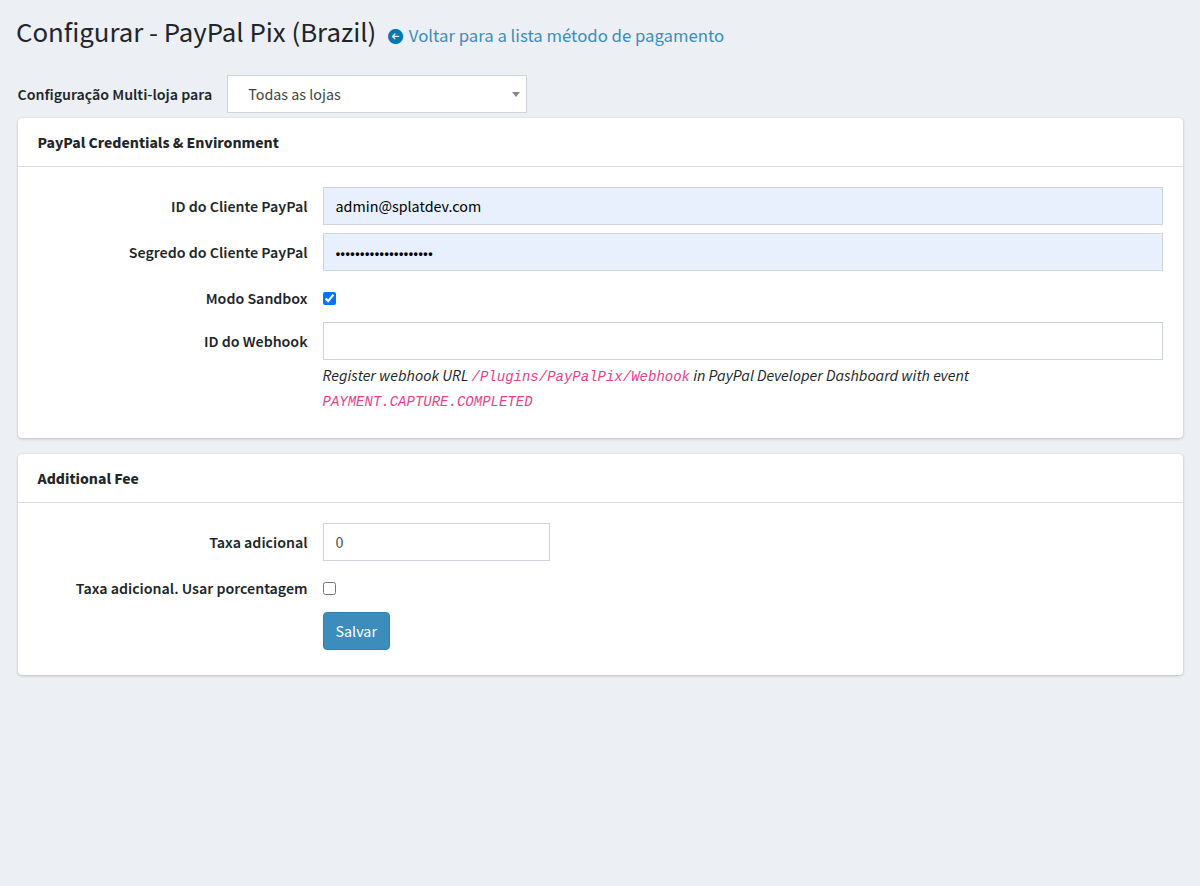
- Install and open Configuration > Payment Methods > PayPal Pix > Configure
- Enter your PayPal Client ID, Client Secret, and Webhook ID; choose sandbox or production, and test a full order before exposing the method in checkout
Support
Visit splatdev.com. Developed by SplatDev Ltda.
Found a bug? Report it here.